How to Use Teleprompter on MemoMind One: AI Follow, Auto Scroll & Manual
Presenting, filming, pitching, giving a toast. The script sits in your line of sight, and nobody else can see it.
MemoMind One's Teleprompter turns your glasses into a hands-free prompter — no tripod-mounted glass panel, no phone taped to your camera, no glancing down mid-sentence. This guide walks you through the full setup: adding scripts, starting a session, choosing a scrolling mode, adjusting display settings, and using the AI assistant.
Teleprompter is one of several in-the-moment features on MemoMind One — it pairs naturally with Recorder for post-speech AI summaries and Captions for live transcriptions.
How to Add a Script to Teleprompter
Open the Teleprompter tab in the MemoMind app, and every saved script is right there. Tap the "+" button to add a new one — the app offers four import methods:
-
Clipboard import — paste text you've copied from another app
-
New script — type directly in the editor
-
New outline — build a structured outline with sections and bullet points
-
File import — import a document file from your device
You can also hold to speak and dictate using voice input. The script saves to your library and is ready whenever you need it.
How to Start Teleprompter
Once your script is ready, tap Start in the app — the glasses display switches directly to the full prompter view. There are two ways to launch:
-
From your phone — tap Start in the Teleprompter interface
-
From the glasses — press the Tap button on the temple to launch instantly, no phone needed
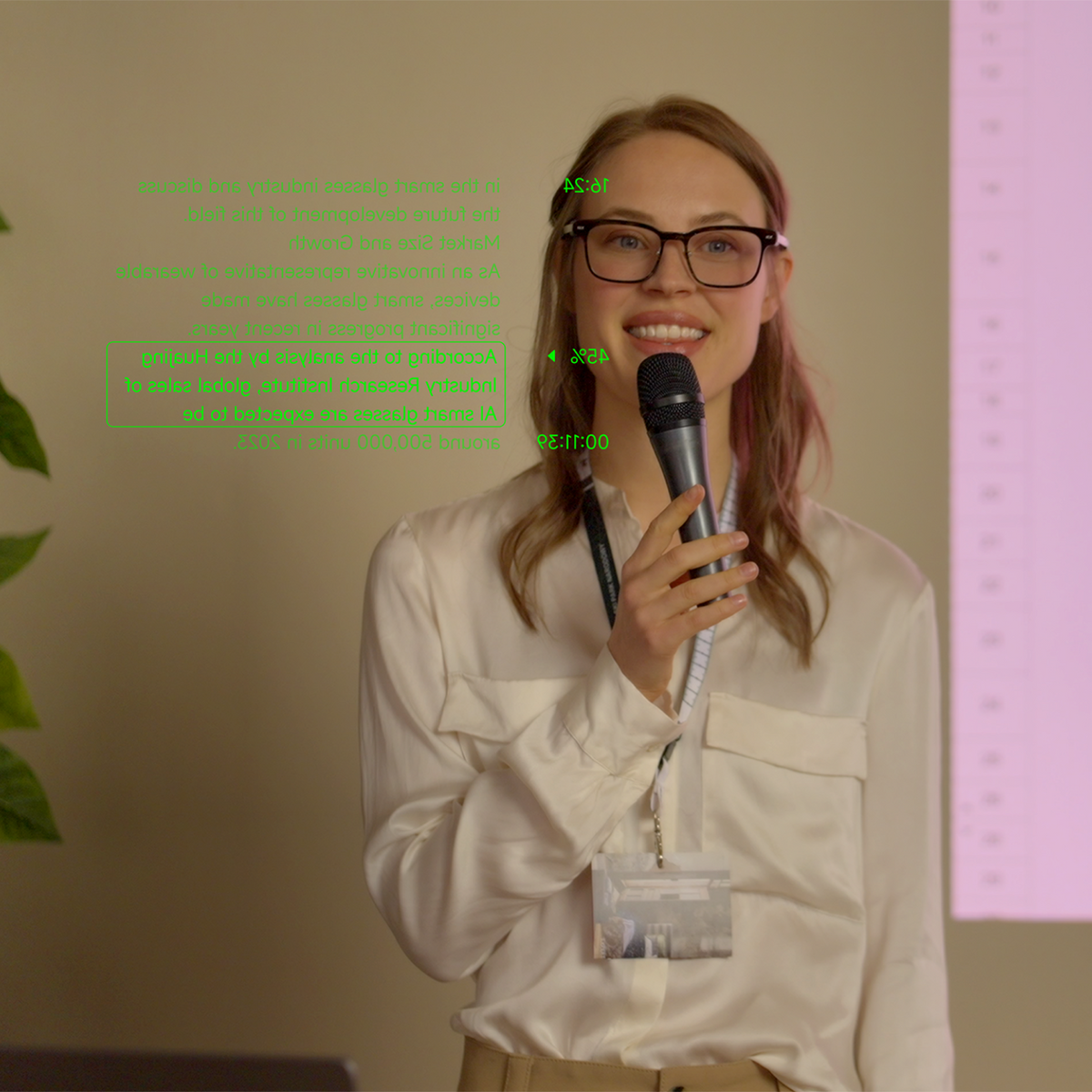
Either way, the script appears in your line of sight within seconds. During a live session, you'll see elapsed time, progress percentage, and your current line boxed and highlighted so your eye finds it instantly.
Teleprompter Display Settings: Font, Line Width, Distance & Brightness
At the bottom of the Teleprompter interface, you can customize every display parameter.
Font size — Large (best for stage and distance) or Small (best for desk recordings and more lines visible).
Line width — Wide (full-width, fewer lines), Medium (balanced), or Narrow (more lines, easier to track your place).
The Teleprompter also has its own independent Display settings panel, separate from system settings:
-
Display distance — how far the text appears, from near to far (1–5m)
-
Display height — vertical position in your field of view
-
Brightness — screen brightness for different lighting environments
These settings apply only to the Teleprompter interface — they don't affect Captions, Translator, or any other feature.

Three Teleprompter Modes: AI Follow, Auto Scroll & Manual
MemoMind One offers three professional scrolling modes, each built for a different speaking style.
AI Follow Mode
The glasses listen and advance the script as you speak. Pause for water, ad-lib, or take a question — and it waits for you. When you resume talking, the script catches up automatically. Best for live speeches, wedding toasts, and any situation where your pace isn't perfectly predictable.
Auto Scroll Mode
The script scrolls at a fixed speed you set before starting. Adjust the speed up or down until it matches your natural rhythm. Best for tight takes, scripted videos, and situations where you know your pace ahead of time.
Manual Mode
You control the pages. Swipe the script on your phone to adjust your reading position, or turn on volume key paging to scroll with your phone's volume up/down buttons.
Manual mode also works with any third-party Bluetooth HID controller — a ring clicker, presentation remote, or any device that sends up/down signals. For example, you can page through with an off-the-shelf ring clicker: your thumb moves, the script moves.
Note: Volume key and Bluetooth HID paging only work when the Teleprompter page is in the foreground and the device screen is on. If you switch apps or the screen locks, these controls pause.

How to Pause, Resume & End a Session
Pause anytime — the script stops scrolling and your position is saved.
End with either of two long-press actions (so you never kill a live session by accident):
-
Long-press the temple button for 2 seconds — quick termination without your phone
-
Long-press the End button in the app
Resume — the next time you open Teleprompter, a Resume button appears in the bottom-left corner. Tap it to jump straight back to where you left off.
AI Assistant: Estimate Speech Time & Optimize Formatting
At the bottom of the script editor, tap the AI Assistant button for two features:
-
Estimates speech duration — the AI analyzes your script and estimates how long it will take to deliver at a natural pace, so you know if you're within your time limit before you start.
-
Optimizes formatting — the AI automatically adjusts line breaks, paragraph structure, and layout to fit the glasses display better. The result is cleaner text that flows more smoothly when scrolling.
This pairs well with Recorder — after your speech, Recorder captures the audio and generates an AI summary with key points and action items.
Works Fully Offline
No signal, no problem. Teleprompter on MemoMind One display glasses runs entirely on-device — a basement conference room, a venue with dead Wi-Fi, or a shoot in the middle of nowhere makes no difference. Your script is there when you need it, and none of your content leaves the device.
Related Blogs
More MemoMind stories from the same category.