Live Captions Glasses: How to Get Real-Time Subtitles for Conversations
If you're deaf or hard of hearing, live captions aren't a convenience — they're how you participate. If you're in a noisy room or a lecture hall with bad acoustics, they're how you keep up. MemoMind One's Captions streams speech as text on your lenses, in real time, and saves every session with an AI summary for later.
How to Start Live Captions
Follow these three steps to get captions running:
Step 1: Find Captions. Captions lives in the More menu by default. You can also long-press and drag it to your bottom navigation for faster access — just like moving an app icon on your phone home screen.
Step 2: Tap Start. Once you open Captions, tap Start — the system begins generating live transcription within a couple of seconds.
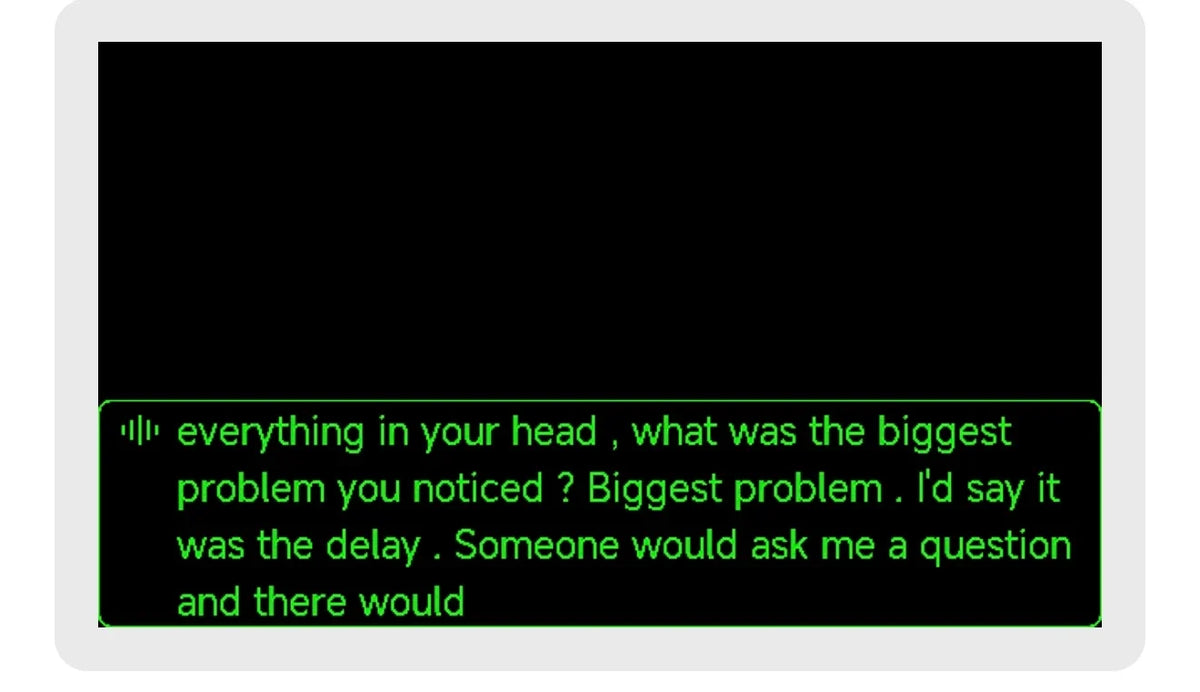
Step 3: Read along. Text appears on your lenses, right over the person speaking, so you stay in the conversation instead of looking down at a phone. Rough fragments land first, then punctuation and capitals fill in as each sentence completes — you get readable sentences instead of a wall of raw speech. You can pause and resume whenever you want.
How to Adjust Captions Settings
Before or during a session, follow these steps to configure your captions for the best experience:
Transcription Language
Choose the language you want transcribed. Select the correct language before starting for the best accuracy.
Online or Offline Model
Choose between two transcription models:
-
Online model — runs on our servers, higher accuracy and better punctuation, requires an internet connection
-
Offline model — runs entirely on-device, works without internet, best for situations where you don't have connectivity or want privacy
Audio Input
Choose where the audio comes from:
-
Glasses — uses the glasses microphone, best for hands-free use and when you're wearing the glasses
-
Phone — uses the phone microphone, best when the phone is placed near the speaker or on a table
Microphone Pickup Direction
Choose the mic pickup pattern:
-
Front — focuses on audio in front of you, best for one-on-one conversations and reducing background noise
-
All directions — picks up audio from all around, best for group discussions and meetings where multiple people are speaking
AI Capability: Live Notes & AI Notes
Turn on AI capabilities for more than just transcription:
-
Live Notes — real-time summaries and key points appear as the conversation happens
-
AI Notes — smart notes and structured information extracted from what's being said

With these on, the AI Summary that follows each session is richer and more organized — with themed sections, key points, and actionable takeaways.
How to Review and Search After the Session
When you end a session, follow these steps to review what was captured:
Step 1: Open the saved session. Captions saves the full record in two sections you can view side by side:
-
AI Summary — an auto-generated title, topic tags, suggested follow-ups and the conversation reorganized into themed sections with key points pulled out
-
Original — the full, verbatim transcript of everything that was said
Step 2: Search for what you need. Both sections support search — type a keyword to find the exact moment you're looking for, without scrolling through the entire transcript. This makes it easy to locate a specific question, decision, or name from a long meeting or lecture.
For follow-up questions and deeper analysis of past sessions, pair Captions with Memo+.

How to Use Captions in Daily Life
-
Meetings — follow every word in a noisy conference room, then search the transcript for the decision you need
-
Lectures & classes — capture the full lecture in real time, get an AI summary with key topics, and search for specific terms later
-
Noisy environments — restaurants, cafes, crowded spaces — captions cut through the background noise
-
One-on-one conversations — front-direction mic focuses on the person in front of you, reducing distractions
-
Group discussions — all-direction mic picks up everyone around the table
Related Blogs
More MemoMind stories from the same category.