How to Use Memo AI: Hands-Free Voice Assistant with Multi-Turn Conversation
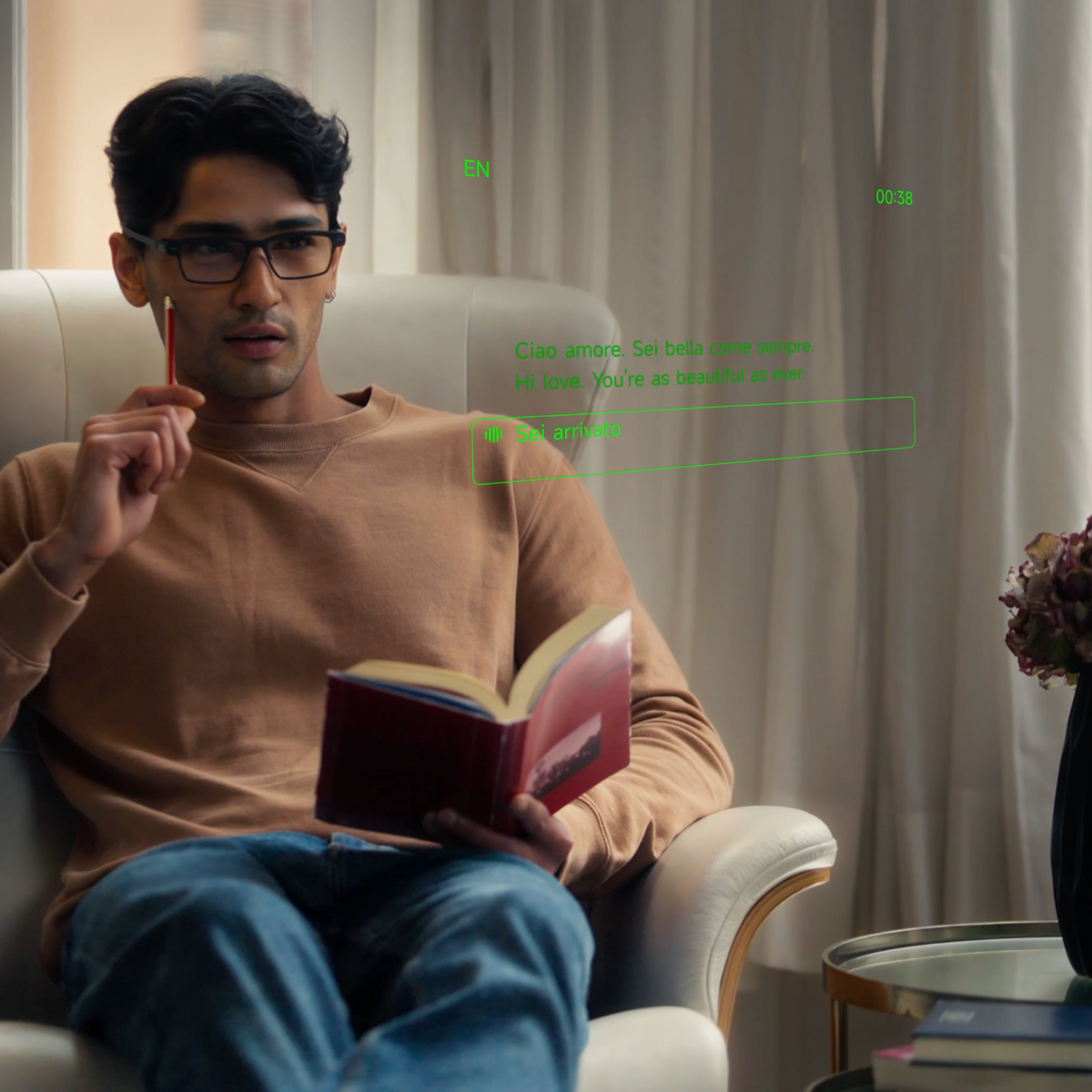
Memo AI on MemoMind One doesn't just answer questions. It holds the whole conversation in mind — what you asked three questions ago, what "it" refers to, where you were going with all this.
Most voice assistants make you re-explain yourself every turn. You ask a question, get an answer, then have to restate the entire context for the follow-up. Memo AI is different: it keeps the thread. Ask a follow-up the way you'd ask a person, and it keeps up.
How to Wake & Talk to Memo AI
Follow these steps to start a conversation with your own personalized MempMind smart eyewear:
Step 1: Wake it. Say "Hi Memo" to wake the assistant. The display shows "I'm listening, please speak." With Continuous Conversation enabled (Settings → Memo AI), it stays listening after each answer, so you don't repeat the wake word for follow-ups.
Step 2: Talk naturally. Ask a question, give a command, or start a conversation. Your words appear on screen as you speak, so you can confirm it heard you right. The answer appears as text and — if Voice Replies are on — spoken back through the glasses' speakers.
Step 3: Choose your input mode. Memo AI works three ways:
-
Glasses mics (hands-free) — say "Hi Memo" and talk. The glasses' dual mics pick up your voice. Your phone stays in your pocket.
-
Type in the app — open the Memo AI tab on your phone and type your question. Useful when you can't talk (library, meeting) or want precision.
-
Hold-to-speak — hold the mic button in the app and talk. Good for longer queries or when you don't want to use the wake word.
All three share the same conversation. Start on the glasses, continue on your phone — the history follows you. And that is exactly what a pair of camera‑free smart glasses with speakers can definitely do.
How to Use Multi-Turn Conversation
This is the feature that separates Memo AI from a basic Q&A bot. Here's how it works:
Step 1: Ask your first question. Start with any question — "What's a good movie for a rainy Saturday?"
Step 2: Follow up without re-explaining. Ask "Which one has the best soundtrack?" It knows you're asking about the three films it just suggested. Then "Is it streaming anywhere?" It knows you're asking about the film you're now discussing.
Step 3: Use suggested follow-ups. Under any answer, you'll see suggested follow-up questions. Tap one to keep the conversation going, or ignore them and ask your own.
This works because each turn includes the full conversation history as context.
"The AI model sees everything you've said so far, so it can resolve pronouns, references, and implied topics."
Very long conversations (dozens of turns) may eventually lose earlier context — for ongoing projects across days, use Memory to bridge sessions.
How to Adjust Memo AI Settings
In the Memo AI interface, you can customize several settings to match how you work.
Set Up Good Morning Memo
Turn on Good Morning Memo in settings, and the first time you put the glasses on each day, Memo AI greets you with a morning briefing. You can choose what to include:
-
Include schedule — your calendar events for the day
-
Include to-do — your pending tasks, including yesterday's unfinished items
Good Morning Memo organizes and displays weather, today's schedule, and yesterday's to-do items, helping you start the day with everything you need at a glance — hands-free, before you even pick up your phone.
Choose Reply Length
Reply Lens controls how verbose the answers are, with three options:
-
Concise — short, direct answers for quick facts
-
Medium — balanced detail for most questions
-
Detailed — longer explanations for complex topics
Choose the level that matches your use case — concise for cooking and driving, detailed for research and planning.
Toggle Voice Replies
Turn on Voice Replies to have the assistant speak the answer back through the glasses' speakers, in addition to showing text. Turn it off when you're in a quiet environment and prefer text-only.
Turn On Memory & Automatic Meeting Extraction
Under Memory settings:
-
Memory (on/off) — turn it on to have your day organized into Moments (things that happened), Memo+ search(things you need), and Up Next (objects and people you mention). The assistant uses this to give you more relevant answers over time.
-
Automatic Meeting Extraction — when enabled, Memo AI automatically recognizes work conversations and key topic discussions, then generates a summary. This means meetings and important discussions are captured and organized without you having to manually record them. While it produces AI summaries similar to Recorder mode, the way you use it is fundamentally different: Recorder requires you to start recording manually and captures full raw audio.
Everything is opt-in, and you can clear Memory at any time in settings.

Real‑World Scenarios for Memo AI
-
Quick facts while busy. Cooking, driving, or getting dressed — ask "How long do I boil an egg?" without touching your phone. The answer appears on your lenses.
-
Planning and research. Ask for restaurant recommendations, then follow up with "Which one is closest?" then "Do they take reservations?" It keeps the context through every turn.
-
Morning routine. Put the glasses on and Good Morning Memo gives you the weather, your schedule, and yesterday's to-dos. Then ask follow-ups about your day — "What's my first meeting?" "Where is it?" — without re-explaining.
-
Meetings. With Automatic Meeting Extraction on, important discussions are recognized and summarized automatically. Pair with Recorder for full audio plus structured notes.
-
Hands-free while walking. Ask for directions, a quick calculation, or a translation while you're on the move.
What to Know Before You Start Memo AI
-
Multi-turn context has a window. The assistant remembers the current conversation, but very long conversations (dozens of turns) may eventually lose earlier context. For ongoing projects across days, use Memory to bridge sessions.
-
Voice accuracy depends on environment. The glasses' mics work well in moderate noise, but very loud environments (concerts, crowded bars) may reduce recognition accuracy. In those cases, typing in the app is more reliable.
-
Web search adds latency. When Memo AI searches the web, the answer takes a moment longer than a direct response.
-
Memory is opt-in. Nothing is stored or used unless you turn Memory on. You can review and clear Memory data at any time in settings.
-
Automatic Meeting Extraction requires Memory. This feature works when Memory is enabled — it identifies work conversations and generates summaries, but may occasionally miss informal or very short discussions.
-
Requires internet. Memo AI runs on our servers. You need a data connection (Wi-Fi or cellular through your phone) to use it.
-
Battery. Continuous Conversation mode keeps the mic active between turns, which uses more battery than one-shot wake-word mode. If battery is a concern, turn off Continuous Conversation and use the wake word each time.
Related Blogs
More MemoMind stories from the same category.