How to Record on MemoMind One: AI Summaries, Transcripts & Export
If you've ever left a meeting with a full audio file and zero energy to transcribe it, you know the problem. MemoMind One's Recorder captures audio from your glasses or phone, then automatically generates a speaker-split transcript and an AI summary with key points and next steps.
This guide walks you through the full flow: starting a recording, reviewing the AI summary and transcript, translating foreign-language recordings, editing text, adjusting playback speed, merging recordings, and exporting your notes.
How to Start Recording
Open the MemoMind app and find the Recorder tab in the bottom navigation. Tap the mic button to start recording — a live waveform and timer confirm it's working.
Before you start, choose your audio source:
-
Phone recording — uses the phone microphone, best when the phone is placed near the speaker or on a table
-
Glasses recording — uses the glasses microphone; best for hands-free capture when you're wearing the glasses and moving around
You can pause, resume, or switch audio source mid-session without ending the recording. When you're done, tap stop — the file saves automatically with a timestamped name and duration, so a 30-second voice memo and a 90-minute meeting sit side by side and stay easy to find.
Control Recording from Your Glasses
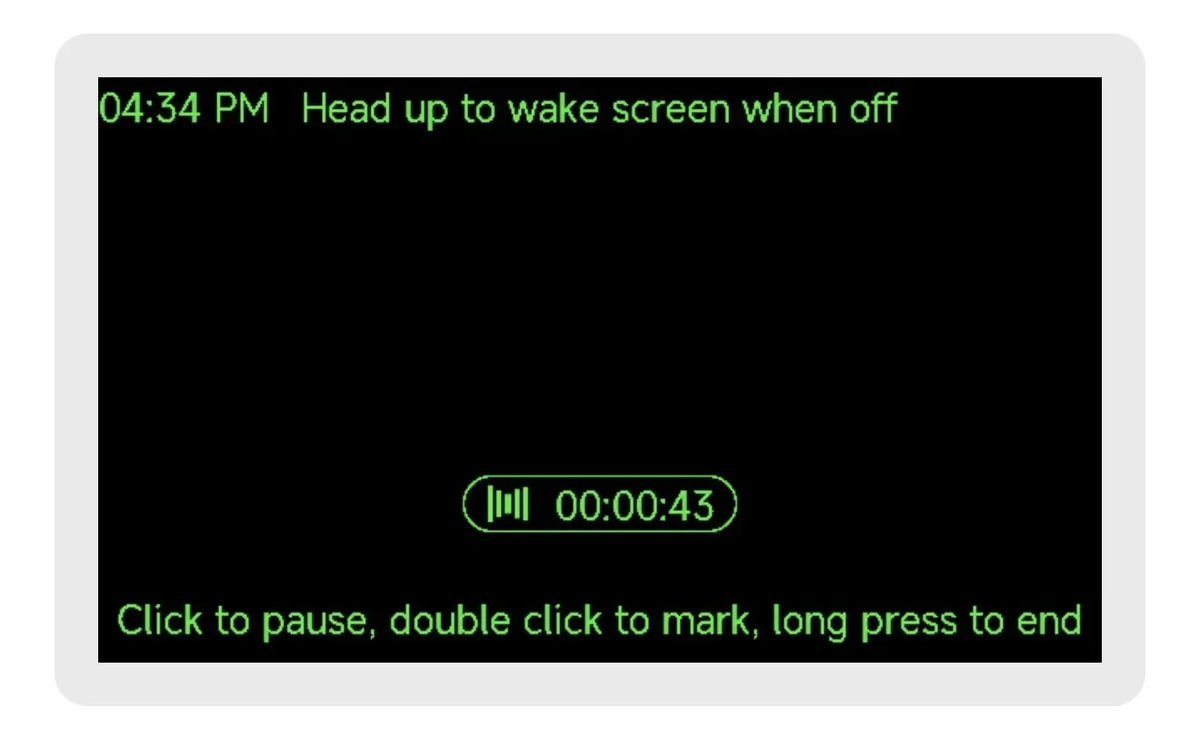
You don't need your phone to manage a recording — the glasses give you full hands-free control:
-
Head up to wake — lift your head to wake the glasses display and check the recording status
-
Screen when off — the recording keeps running even when the glasses screen is off
-
Click to pause — single-click the temple button to pause the recording
-
Double click to mark — double-click the temple button to place a marker at the current moment, so you can jump back to important points later
-
Long press to end — long-press the temple button to stop and save the recording
These controls make the MemoMind AI Recorder fully usable without touching your phone — ideal for interviews, lectures, or any situation where pulling out a phone would be disruptive.
After Recording: AI Summary&Original Transcript
Every recording opens in two tabs you can view side by side:
Original Transcript
The full transcript, split by speaker and stamped by time. Tap any line to jump straight to that moment in the audio. This is your verbatim record — every word, both speakers, timestamped.
AI Summary
MemoMind turns the transcript into structured notes: a title, the core outline of what was discussed, ideas worth keeping, and concrete next steps. It shapes itself around your content — a product brainstorm and a client call come back looking very different. Generation runs in the background, so you can close the page and come back to it.
Translate the AI Summary
If the recording is in a language you're not familiar with, the AI Summary supports translation. You can choose from three display modes:
-
Bilingual — original and translation side by side
-
Translation only — show just the translated text
-
Original only — show just the source text
You can also switch the target translation language at any time. This turns a foreign-language lecture or interview into notes you can actually read and use. For follow-up questions and deeper analysis of past recordings, pair Recorder with Memo AI.

Playback&Text Editing
Adjust Playback Speed
When playing back the original recording, you can adjust the playback speed: 1x, 1.5x, 2x, or 3x. Reviewing an hour-long call doesn't have to take an hour — skip the pauses and small talk at 2x or 3x, then slow down for the parts that matter.
Find&Replace
In the text record page, use the find & replace function to search for specific keywords and replace them across the transcript. This is useful for correcting names, updating terminology, or cleaning up filler words before you share the notes.
Share&Export
Recordings support multi-channel export. From any recording, you can export:
-
Original audio — the raw recording file
-
Original text — the full transcript
-
AI Summary — the structured notes
-
Mind map — a visual mind map generated from the summary
Share the whole thing with one tap via your preferred app, or save the files to your device for later reference.

Recording List: Merge, Search&Auto Semantic Extraction
View All&Merge Recordings
Tap "View All" in the recording list to see your full history. You can select multiple recordings and merge them into one file — useful when a single meeting was captured in multiple segments, or when you want to combine related voice memos into one coherent record.
Search Recordings
From the recording list page, type a keyword to search across all your recordings. Find the meeting you're looking for without scrolling through months of history.
Auto Meeting Extraction
Turn on auto meeting extraction, and the app will automatically recognize work and key discussions and generate summaries. This means even recordings you haven't opened yet come with a quick overview — so you can decide what's worth a full review at a glance.

What You Can Do with the MemoMind Recorder
-
Meetings — capture the full discussion, get an AI summary with action items, and share it with attendees who couldn't make it
-
Lectures & classes — record the lecture, play back at 2x, and export the summary for study notes
-
Interviews — capture every word, use find & replace to clean up the transcript, and export the mind map for analysis
-
Voice memos on the go — capture a thought before it evaporates, let auto semantic extraction generate a quick summary, and merge related memos later
What to Know About the Recorder
-
Requires internet for AI Summary. The recording itself works offline, but AI summary generation and translation require an internet connection. If you record offline, the summary generates once you're back online.
-
Speaker separation accuracy. The transcript splits by speaker, but accuracy can degrade in noisy environments or when multiple people talk over each other.
-
Translation coverage. AI Summary translation supports multiple target languages, but very technical or domain-specific terminology may require manual review.
-
Merge is file-level. Merging combines recordings into one file; it doesn't deduplicate or cross-reference content between them.
-
Storage. Long recordings take up storage space on your device. Export and delete recordings you no longer need to free up space.
Related Blogs
More MemoMind stories from the same category.