
Downsides of Wearing Display Glasses
The experience depends largely on the type of glasses you wear.
Common complaints about display glasses include:
-
Eye fatigue: Your eyes may feel tired after repeatedly looking at information displayed in front of them.
-
Dry or irritated eyes: Concentrating on a display can reduce how often you blink.
-
Blurred vision or difficulty focusing: Some people experience temporary visual discomfort when switching between a virtual display and their surroundings.
-
Headaches: Visual strain, an unsuitable prescription, or an uncomfortable frame can contribute to headaches.
Physical comfort matters too. Heavy frames, poorly positioned nose pads, or a frame that sits at the wrong angle can create pressure around the nose, ears, and temples. These issues can happen with audio-only glasses as well.
Why Can AI Glasses Cause Eye Strain
Several factors may contribute, and they do not apply equally to every model.
Focus and Convergence Mismatch
When you look at a real object, two processes work together. Vergence is the movement of your eyes inward or outward to point at an object. Accommodation is the adjustment your eyes make to focus clearly at a particular distance.
In everyday vision, these two processes generally correspond to the same viewing distance.
Some AR and stereoscopic display systems can create a mismatch between the distance your eyes converge on and the distance they accommodate to focus. This is known as vergence-accommodation conflict (VAC). It may contribute to visual fatigue or discomfort in certain display systems.
For a more technical explanation, see Microsoft's guide to comfort in mixed reality.
Fewer Blinks
People tend to blink less when concentrating on a digital display.
The American Academy of Ophthalmology notes that blink rates can fall from around 15 times per minute to 5–7 times per minute during screen use. Less frequent blinking allows tears to evaporate more quickly, which can contribute to dry, irritated, or burning eyes.
This is a familiar cause of discomfort during prolonged phone and computer use. It can also matter when using display-equipped glasses, particularly when you spend long periods reading or concentrating on the information in front of you.
Switching Visual Attention
Looking between information in your glasses and objects in the surrounding environment requires your visual system to shift attention between two different views
The demands depend on how the virtual image is presented and how often you switch between it and the real world. Briefly checking a translation or notification may feel manageable. Repeatedly reading long passages from a display can become more tiring.
Physical Fit and Binocular Display Alignment
The way a frame sits on your face affects where its display appears in your field of view.
Frame tilt, nose-pad position, and eye spacing can all change the relationship between the display and your pupils. A frame that sits too high, too low, or at an angle may make the image harder to view comfortably.
Binocular displays add another consideration. They present separate images to the left and right eyes, and those images need to appear in positions that work comfortably together. If the display positions do not suit a particular wearer, viewing with both eyes may feel uncomfortable even when each eye can see its image clearly on its own.
How to Reduce Eye Strain When Wearing AI Glasses
A few practical habits can make display use more comfortable.
Take Regular Breaks
Avoid staring at the display continuously. Use it when the information is useful, then look away and give your eyes a chance to rest.
The 20-20-20 rule is an easy reminder: every 20 minutes, look at something at least 20 feet away for 20 seconds.
Blink Fully and Regularly
Consciously blinking can help keep the surface of your eyes lubricated, especially when you are concentrating on text.
If dryness keeps coming back, lubricating eye drops may help. Ask an eye-care professional which type is appropriate for you.
Match Display Brightness to Your Environment
A display that looks excessively bright in a dim room may feel uncomfortable. One that is too dim in bright surroundings may be difficult to read.
Adjust brightness to suit the environment instead of leaving it at one setting throughout the day.
Check the Frame Fit
Make sure the glasses sit level and comfortably on your nose and ears. Adjust the nose pads and temple arms if the frame tilts or slips.
For display-equipped glasses, a comfortable physical fit also helps keep the image in a predictable position relative to your eyes.
Check Your Prescription
An outdated or unsuitable prescription can make viewing more difficult. If you wear prescription glasses, check whether the smart glasses support your prescription and whether the lenses are fitted correctly.
Do AI Glasses Adjust to Your Eyesight
Two different types of adjustment are often confused: prescription correction and display alignment.
Prescription correction compensates for refractive errors such as nearsightedness, farsightedness, or astigmatism. It needs to match your eye examination and is provided through prescription lenses.
Display alignment changes the position of the virtual image in your field of view. It can help adjust where the image appears, but it does not correct refractive errors or change your prescription.
A pair of smart glasses can support prescription lenses and still need its display position adjusted to suit the wearer.
Before buying display-equipped glasses, check which prescriptions the model supports. For example, the current MemoMind One prescription edition supports single-vision lenses.
How MemoMind One Handles Display Alignment
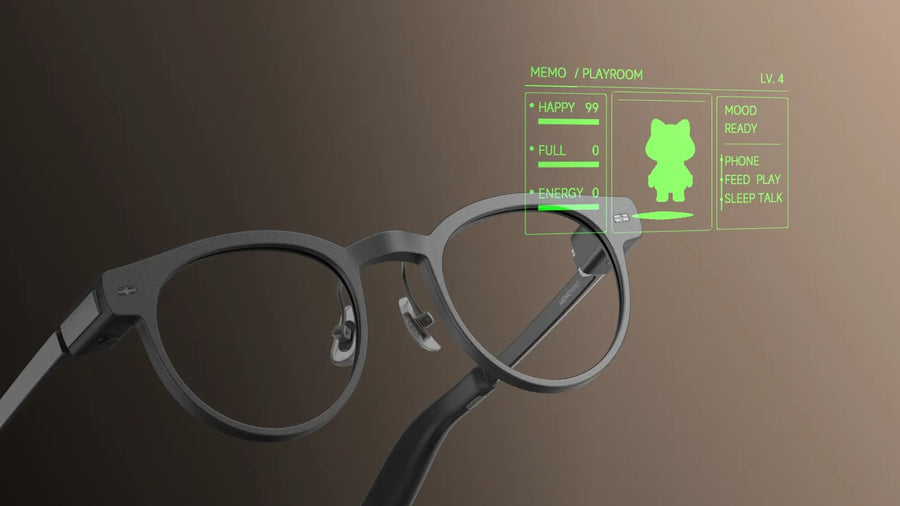
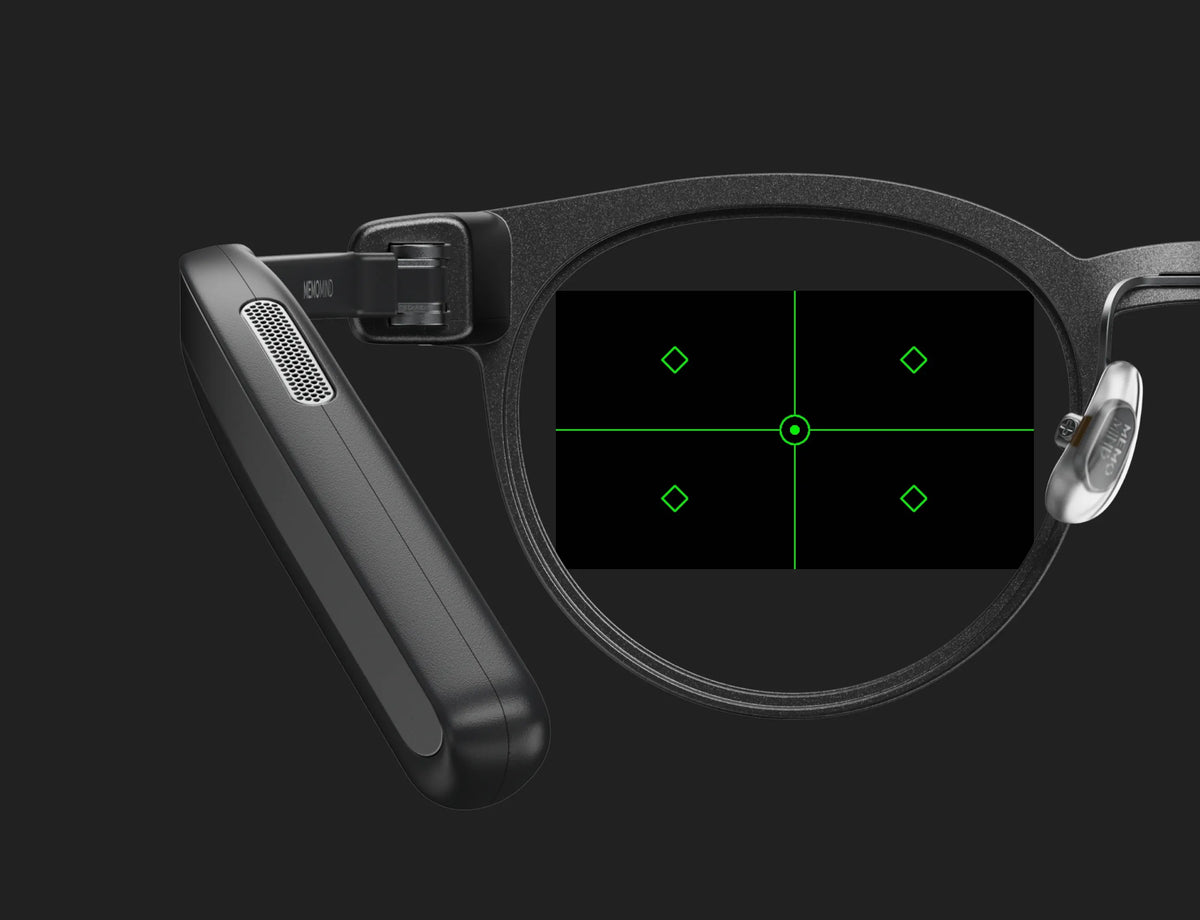
MemoMind One uses a binocular display, presenting a separate image to each eye. This makes the position of the left and right images an important part of the viewing experience. To give users more control over that position, MemoMind includes a Display Alignment Calibration tool in Memo Lab, the experimental-features section of the MemoMind app.
The tool lets users adjust the left and right display images vertically and horizontally. It is a software adjustment that changes where the virtual images appear in your field of view. It does not modify the physical lenses, correct your prescription, or treat an eye condition.
A Real User Case
The feature began with feedback from an early tester.
On June 25, an early tester, @Dango, reported a problem while using the prescription-lens PVT version of MemoMind One.
His experience differed depending on how he viewed the display. One eye closed: The image looked sharp and clear, with no noticeable focusing problem. Both eyes open: He experienced mild but persistent focus-related eye strain. ECO mode: With a single-screen view and both eyes open, the discomfort became more noticeable unless he closed one eye.
Before changing the software, we worked with Dango to rule out other possible causes. With guidance from our support team, he tried moving the virtual display distance from roughly 5 meters to 1 meter, swapping nose pads, adjusting frame tilt, and checking his prescription with an optometrist using both MemoMind One and a well-fitting pair of regular glasses.
Those changes helped slightly, but they did not fully resolve the discomfort.
That told us a fixed factory display position might not be enough for every user. Prescription lenses, wearing position, face shape, and individual binocular vision can all affect how comfortable a near-eye display glasses feels. So we built a display alignment calibration tool that lets MemoMind One users fine-tune the left and right display positions themselves.
This was one early tester's experience, not a clinical study or a guarantee that calibration will resolve discomfort for everyone. However, his feedback helped the team identify a practical way to give users more control over display positioning.
The team continued refining the tool, which is now available in Memo Lab. Thanks to @Dango for testing the early version and helping shape the feature.
How to Use Display Alignment Calibration
You can access the tool through the MemoMind app:
-
Connect your MemoMind One to the MemoMind app.
-
Open Settings → Device → Memo Lab.
-
Select Display Alignment Calibration.
-
Follow the on-screen instructions to adjust the display positions.
Tips for better results:
-
Keep both eyes open during calibration.
-
Adjust vertical alignment first, then horizontal alignment.
-
Make small adjustments instead of large jumps.
-
Wait a few seconds after each change to assess the result.
-
Stop if the adjustment causes discomfort or makes the image harder to view.