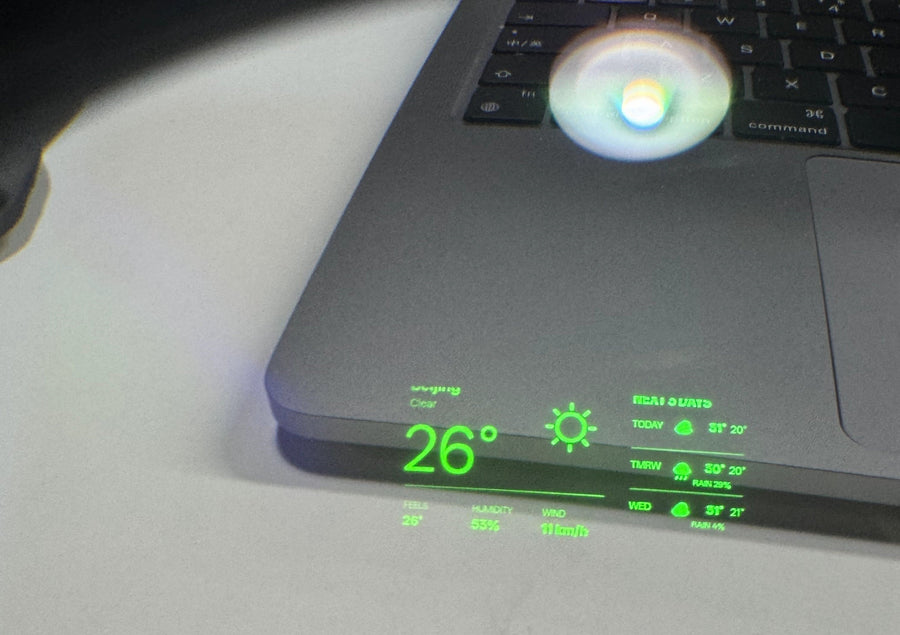
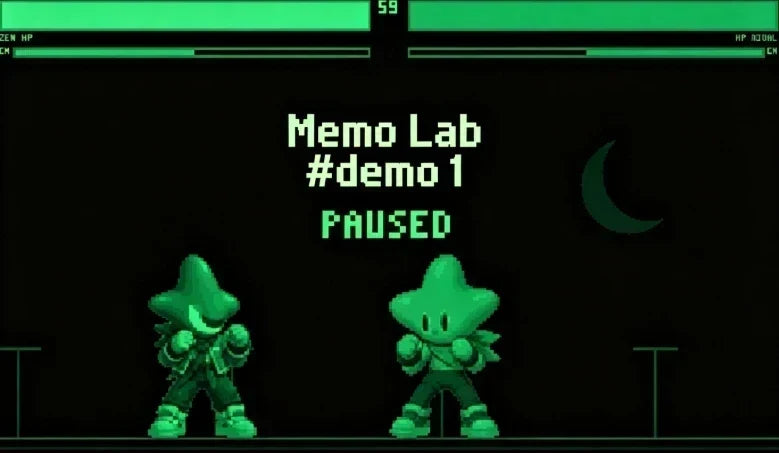
Memo Lab for MemoMind One: Experimental Features & Developer Tools
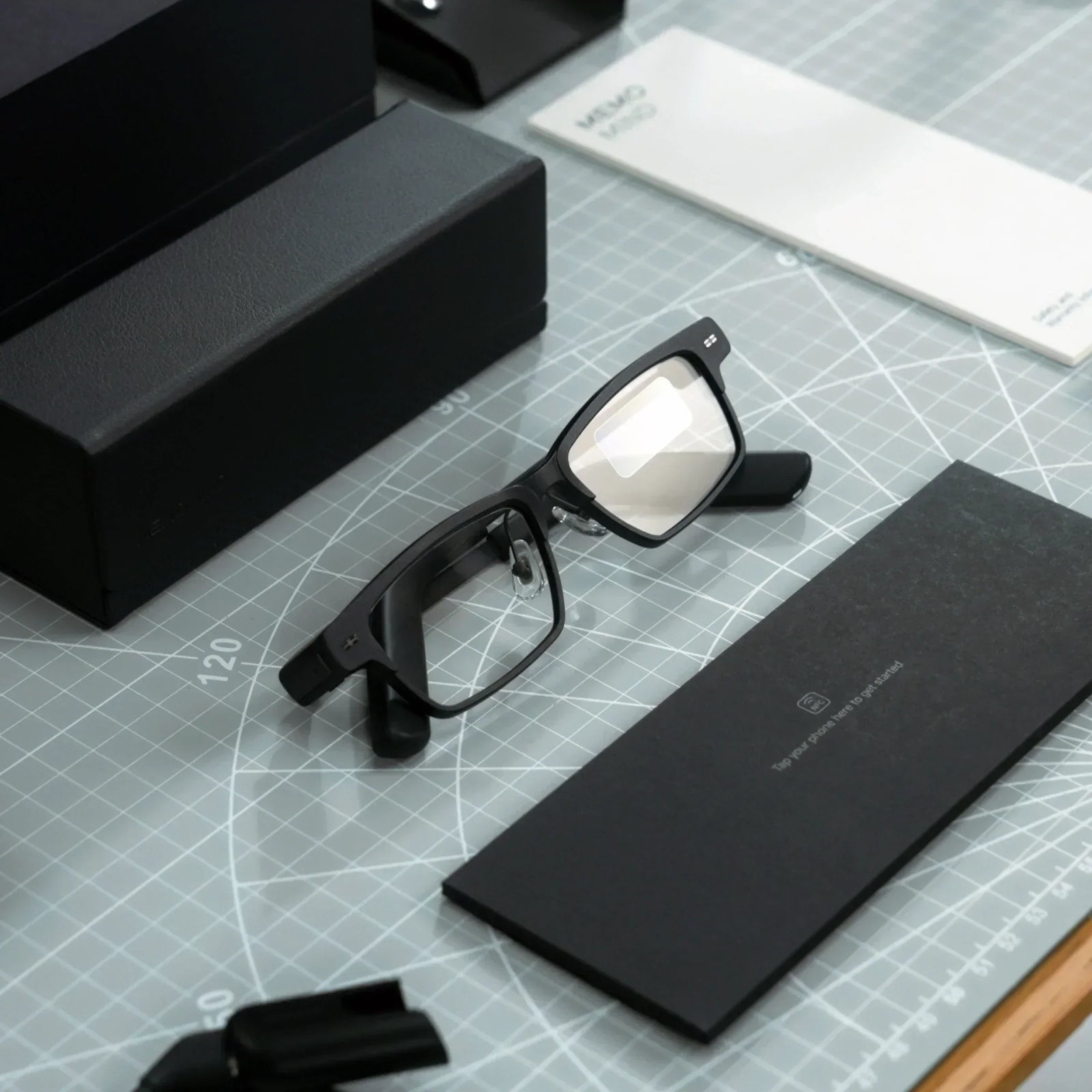
For most people, MemoMind One should still feel straightforward. Put on the glasses, connect them, and start experiencing. Yet, for some other users who want to personalize these glasses to suit their preferences better, there are always new features and experiences to explore.
Simply open the MemoMind app, go to Settings, and locate "Memo Lab"—it was created specifically to provide a space full of such possibilities.
What Memo Lab Is, and Why It Exists
Memo Lab is where experimental MemoMind One features live before they become part of the everyday experience.
That matters because AI glasses are not one-size-fits-all.
A display setting that helps one user may be unnecessary for another. A screenshot tool may be useful for testing, feedback, and sharing, but not something every user needs daily. External agent access is even more sensitive, because it involves connecting the glasses to systems outside the normal app flow.
Keeping these features inside Memo Lab helps protect the main experience. The default app stays clean. Experimental tools stay off until the user chooses to open them.
Memo Lab also has a second role: it is the early foundation for a more programmable MemoMind One. OpenClaw is the clearest example. It lets the glasses connect to an external Gateway and receive commands that can drive the glasses UI. Over time, this points toward a more open developer platform, where MemoMind One can act less like a closed device and more like a wearable terminal for agents, apps, and external systems.
What You Can Find in Memo Lab Today
Display Alignment Calibration
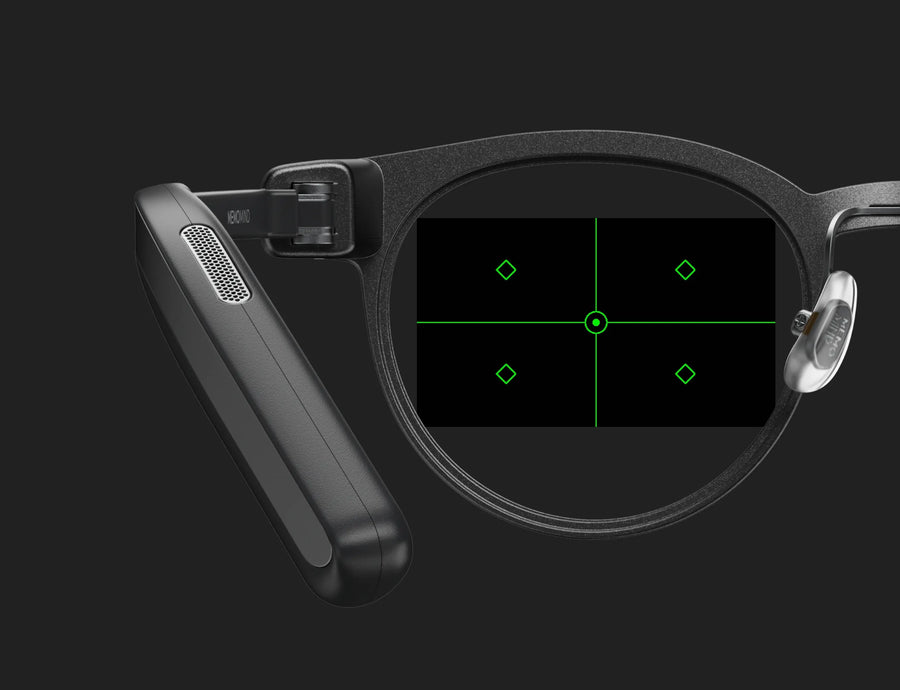
This is the most practical example. It lets users fine-tune the left and right display positions if the image feels slightly off, blurry, or tiring when both eyes are open. That matters because smart glasses fit differently on different faces, and small alignment changes can make the display feel much more natural.
MemoMind has already gone deeper on this in the Display Alignment Calibration guide, which shows how a real comfort issue turned into a useful experiment.
Glasses-side Screenshot
This tool is about capture, not camera recording.
When the screenshot function is enabled, Memo Lab shows a floating camera button on the glasses. Tap it, and it captures exactly what the glasses are displaying. Not the phone screen. Not a camera photo of the frame. The actual UI shown in the glasses.
That makes it useful for feedback, debugging, product review, and sharing.

What Comes Next: Smart Glasses SDK
Memo Lab is not something every user needs every day.
If you only want the normal MemoMind One experience, you can stay on the main path and ignore it.
But for developers and power users, it works more like a workspace than a menu. It is where you go when you want to test a device-level feature, check how a build behaves, or explore what the platform can support next.
Developer access will open in phases.
Phase One begins with the Bluetooth communication protocol, planned for September. This first layer will let developers send text and simple visuals to the HUD, receive touch and button events from the glasses, and access microphone audio for transcription or AI processing.
The important part is that developers will not need to wait for the full SDK before experimenting. With reference code and working demo apps, you are able to connect your own phone or computer to the glasses over Bluetooth and start testing real ideas earlier.
Phase Two is where the full SDK and Memo Lab come together as a developer hub. The goal is to support building, submitting, and publishing apps through a more complete platform. It will start carefully, with invite-only access before opening more broadly, because developer access also requires privacy protection, data security, and real R&D support.
This is where Memo Lab can become more than a feature list. It can become a workshop for new AI glasses experiences: internal experiments, developer builds, demo apps, and community ideas that can be tested before they become part of the main product.

We’ll continue sharing protocol updates, reference code, and demo apps in later articles as Memo Lab and the developer platform expand.
If you have ideas for what Memo Lab should support next, we’d love to hear them in the MemoMind community.
FAQs
Is Memo Lab the same as the SDK?
No. Memo Lab is the space inside the app. The SDK is the broader developer layer that is still being rolled out in phases.
Does this mean I get full control of the glasses?
No. The first developer access layer is expected to cover defined capabilities such as HUD content, touch and button events, and microphone audio. It does not mean open access to firmware internals or low‑level hardware control. MemoMind will document the supported scope when each developer layer is released.
Where can I find Memo Lab?
Open the MemoMind app, go to Settings → Device, and look for Memo Lab. Features inside Memo Lab are opt‑in, so they only run when users choose to enable them.
Is Memo Lab safe to use?
Memo Lab is designed as a controlled space for experimental features. Some tools may be useful for everyday comfort, while others are meant for testing or developer exploration. Users should only enable the features they understand and need.
Related Blogs
More MemoMind stories from the same category.