


How to Create a Task by Voice
Ideas rarely arrive when you're sitting in front of a task manager. A colleague asks for a follow-up. A new project idea appears. You remember a deadline while heading to your next meeting. Here's how to capture it:
Step 1: Wake the assistant or use the shortcut. Say "Hi/Hey Memo" to wake the assistant, or use the designated task shortcut on the glasses. You don't need to open an app or unlock your phone.
Step 2: Speak your task naturally. Say something like: "Remind me to send the invoice to Sarah by Friday." Talk naturally — no special format, no keywords to remember. The glasses' mics pick up your voice even with ambient noise.
Step 3: The AI structures it. MemoMind One picks up the intent, timeframe, and context from natural speech and turns it into a structured task entry, tagged with whatever deadline or name you mentioned. The task appears in your to-do list, organized and searchable.
For busy professionals, students, and creators, it's a faster way to capture tasks before they're forgotten.
How to Manage Your To-Do List
Capturing a task is only half the job — the list itself needs to stay usable as tasks pile up. Here's what you can do once a task is in your list:
Step 1: View and check off tasks. Every task you capture, by voice or otherwise, lands in a single to-do list. Scan it anytime, and check off tasks as you complete them.
Step 2: Sort by priority or time. Instead of scrolling through everything in the order it was added, sort your list by priority or by deadline, so what matters most today rises to the top.
Step 3: Edit or delete a task directly when the details change, rather than recreating it from scratch.
The result is a list that stays organized on its own, instead of turning into a backlog you have to clean up manually.

How to Connect Your Calendar
Most people manage tasks in one app and schedules in another. MemoMind combines both. Here's how to set it up:
Step 1: Import your calendar. Open the MemoMind app and go to Calendar settings. Connect your Google Calendar, Apple Calendar, or Outlook account. You only do this once per calendar.
Step 2: Grant the necessary permissions. The app will ask for read access to your calendar events. This allows MemoMind to display upcoming meetings and deadlines alongside your to-do list. We only read calendar data — we don't modify or delete your events.
Step 3: View your unified schedule. Once connected, upcoming meetings, deadlines, and priorities stay visible without constantly switching between apps. Your calendar events and to-do items appear in a single workflow, so you can see what's next without pulling out your phone.
How to Get Suggested Tasks From Memory
Some of the most important tasks never make it into a task manager. You mention them in a conversation. You say you'll follow up next week. You remember something important and then move on. Here's how MemoMind's AI helps:
Step 1: Enable Memory. Make sure Memory is turned on in the Memo AI settings. Memory stores your conversations and interactions so the AI can reference them later. (You control what's stored — you can review and delete anything.)
Step 2: Have conversations naturally. When a conversation includes a commitment, reminder, or deadline — for example, "I'll send you the proposal by Thursday" or "Let's follow up next week" — the AI takes note.
Step 3: Review and choose. The AI may suggest creating a related to-do item based on what was said. You review the suggestion and choose whether to add it to your task list. Nothing is added automatically.
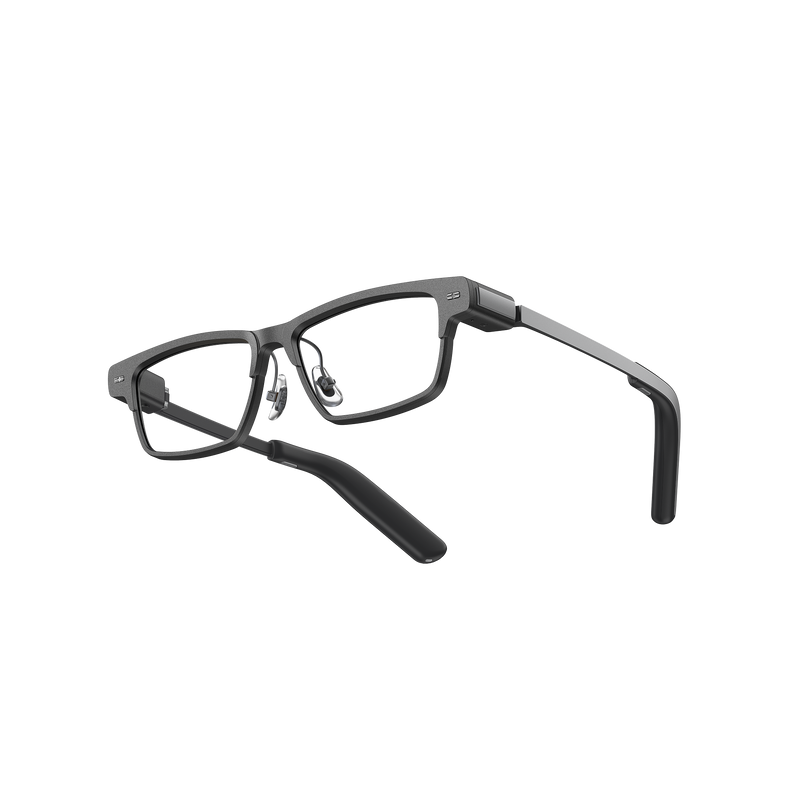
MemoMind One brings task capture, calendar access, and AI-suggested to-dos into a more hands-free workflow. For people who often remember tasks during conversations, meetings, or commutes, it can make everyday task management easier while reducing the need to reach for a phone. It's a practical approach to hands-free productivity, with users staying in control of which suggested tasks make it onto their list.