

When Do You Need Teleprompters
Teleprompters are often associated with news anchors and professional presenters, but they're useful in many everyday situations.
-
Presentations and public speaking. When you have figures, names, key points, or a carefully structured speech to deliver, a teleprompter can help you stay organized without memorizing the entire presentation.
-
Video recording. Creators, educators, and business owners often need to explain something clearly on camera. A script helps them cover the important details while reducing the number of retakes caused by forgotten lines.
-
Online meetings and webinars. For a product demonstration, training session, or prepared company update, notes can help you keep the presentation on schedule. A teleprompter can be useful when you need more than a few bullet points in front of you.
-
Interviews and prepared remarks. When you need to communicate specific information accurately, having key phrases or talking points nearby can reduce the pressure of remembering everything.
Tips to Use Teleprompter Easily
A teleprompter can display every word of your script and still make speaking difficult. The experience depends on a few practical details.
Where the text appears. If you have to look far away from your camera or repeatedly glance down at a phone, your eye contact may feel inconsistent. For a speech, the screen should be positioned close to your natural line of sight. For video, placing the text near the camera lens can help reduce noticeable eye movement.
How the script moves. A fixed scrolling speed may work when you've rehearsed your delivery. But if you pause, change your pace, or add a sentence, the text can move ahead without you. The ability to adjust scrolling or follow your speech can make a difference.
How easily you can control it. You may need to pause, resume, skip a section, or find your place after an interruption. Consider whether you can do that without reaching awkwardly for another device.
How comfortable the text is to read. Font size, line width, screen position, brightness, and reading distance all affect usability.
Three Ways to Control a Teleprompter Script
Auto Scroll: Set the Pace Before You Speak
Auto Scroll moves the script at a speed you set. Some teleprompter apps also let you specify a target duration or words-per-minute rate.
This is a good fit for a rehearsed speech, a product introduction, or a video where you already know your delivery pace. You can adjust the speed before recording and focus on speaking.
The limitation is that the script doesn't know when you've decided to pause. If you stop to emphasize a point or add an unscripted explanation, the text may continue moving. You'll need to pause it or adjust the speed yourself.
Voice Tracking: Let the Script Follow Your Speech
Voice tracking uses speech recognition to follow the words you say. The script advances as you speak and can pause when you stop, so you don't have to maintain a fixed reading rhythm.
This can be helpful for longer presentations, interviews with prepared answers, and video recordings where you naturally vary your pace.
However, voice tracking depends on recognizing your speech and matching it to the script. Background noise, pronunciation, or substantial changes to your wording can affect how well it follows along.
Manual Control: Move the Script When You're Ready
With manual control, you decide when to advance the text. Depending on the tool, you might use a keyboard, remote, clicker, touchscreen, or another supported control.
This approach gives you predictable timing, especially when you want to pause for audience reactions, leave space between sections, or control a presentation at your own pace.
The trade-off is that you have to operate the controls yourself. If doing so takes your attention away from the audience or camera, it may interrupt your delivery.
Best Teleprompter Apps and Software to Consider
Different teleprompter apps offer different strengths, from voice tracking to video recording and desktop controls. Here are four options worth considering.
Teleprompter.com
Teleprompter.com supports iOS, Android, macOS, and web. It offers VoiceGlide, Fixed Speed, Timed Scrolling, and WPM controls, along with script imports, cloud storage, and remote control. Its free Starter plan includes basic teleprompter features, but recorded videos have a watermark.
Best for: Users who want flexible scrolling options across multiple devices.
PromptSmart
PromptSmart is known for VoiceTrack, which matches your spoken words with the script. It also offers preset-speed scrolling and web-based script management. PromptSmart provides a seven-day trial, after which a paid plan is required.
Best for: Speakers who prefer voice-following over fixed scrolling speeds.
BIGVU
BIGVU combines a teleprompter with video recording, editing, captions, and branding tools. Its free plan supports basic prompting and recording, with limitations such as watermarked exports and recording-length restrictions.
Best for: Video creators who want scripting and content production in one app.
QPrompt
QPrompt is a free, open-source desktop teleprompter for Windows, macOS, and Linux. It offers a transparent reading window, customizable keyboard shortcuts, and support for external controllers. Unlike the other options, it focuses on desktop prompting rather than voice tracking.
Best for: Users who want a free desktop teleprompter with customizable controls.
Smart Glasses Make Using a Teleprompter More Natural
Traditional teleprompters display your script on a phone, tablet, computer, or dedicated prompting screen. They work well when the screen can be positioned close to your camera or audience. But even then, you still need to look at a separate display while speaking.
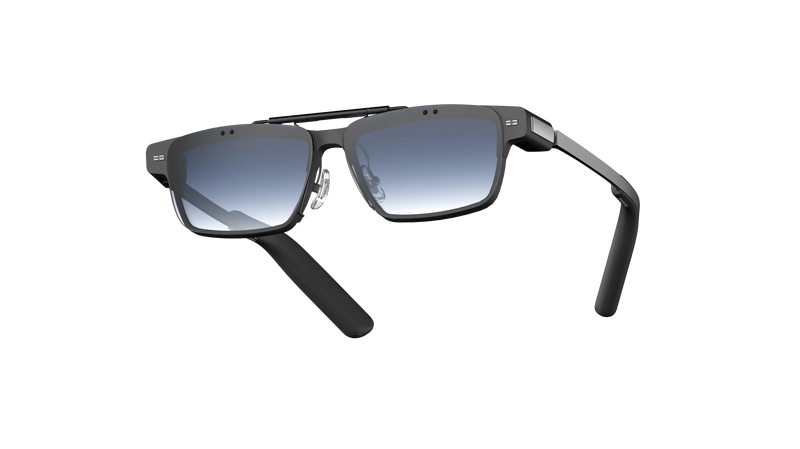
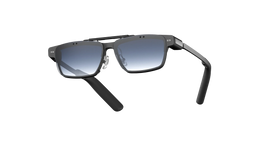
Smart glasses take a different approach. The script appears in the glasses' built-in display, allowing you to read your prompts while keeping your gaze closer to the person you're speaking to or the camera you're addressing. This can make it easier to maintain eye contact without constantly glancing down at a phone or sideways at a monitor.
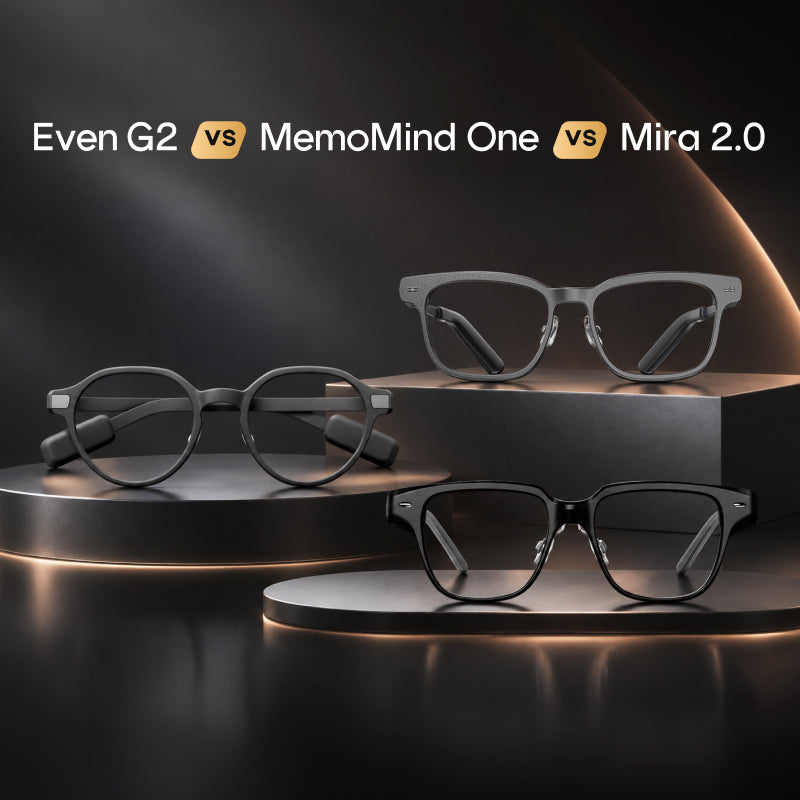
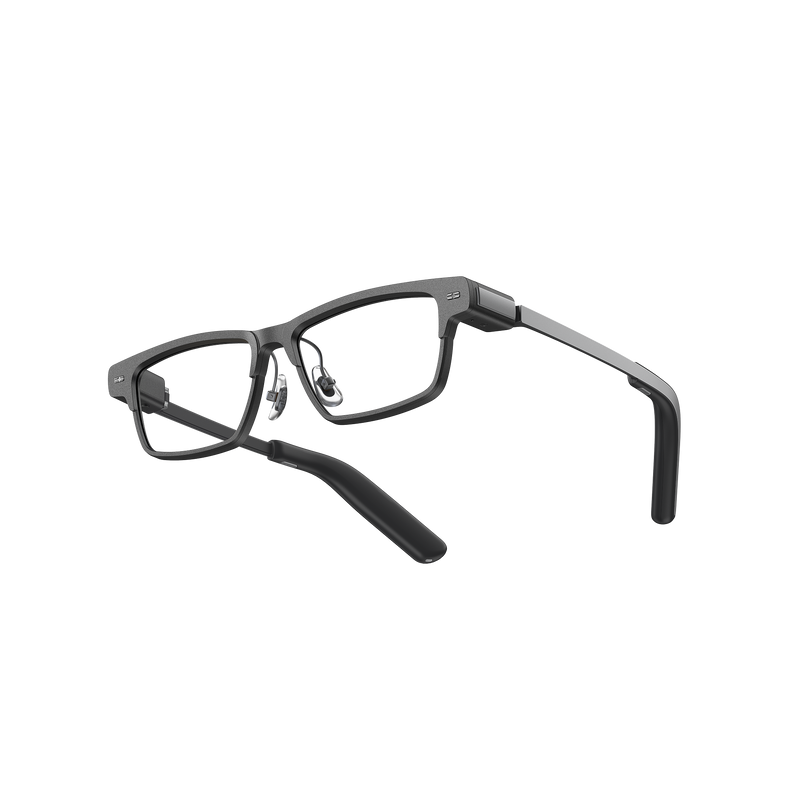
Using MemoMind One as a Free Teleprompter
MemoMind One includes a teleprompter feature with three scrolling modes. AI Follow is the voice-tracking mode, Auto Scroll runs at a fixed pace, and Manual leaves the timing to you.
AI Follow now supports real-time voice tracking across 11 system languages—Simplified Chinese, Traditional Chinese, English, Japanese, Korean, German, French, Spanish, Italian, Russian, and Portuguese.
You can prepare scripts in the MemoMind app using the editor, clipboard, imported files, outlines, or voice dictation. During use, the display offers adjustments for font size, text width, height, brightness, and viewing distance. Elapsed time, reading progress, and current-line highlighting also help you keep track of the presentation.
For a closer look at the setup and controls, see our guide: How to Use the Teleprompter on MemoMind One.
Which Teleprompter Setup Should You Choose
Start with the way you communicate and the kind of support you need.
If you have rehearsed your script and can keep a steady pace, an auto-scroll teleprompter may be enough. If you prefer to speak more naturally and pause when needed, look for voice tracking. For live demonstrations or presentations with frequent audience interaction, manual control gives you more control over when the script moves.
If you record short videos occasionally, a phone-based teleprompter app may be all you need. If you create videos regularly and also need editing or captioning tools, an integrated platform such as BIGVU may fit your workflow. For desktop presentations, QPrompt offers a free, open-source option. If you want the script to follow your speech, compare voice-tracking tools such as PromptSmart and Teleprompter.com.
If your main concern is keeping your gaze closer to the camera or audience, consider smart glasses like MemoMind One as a better approach to displaying the script.