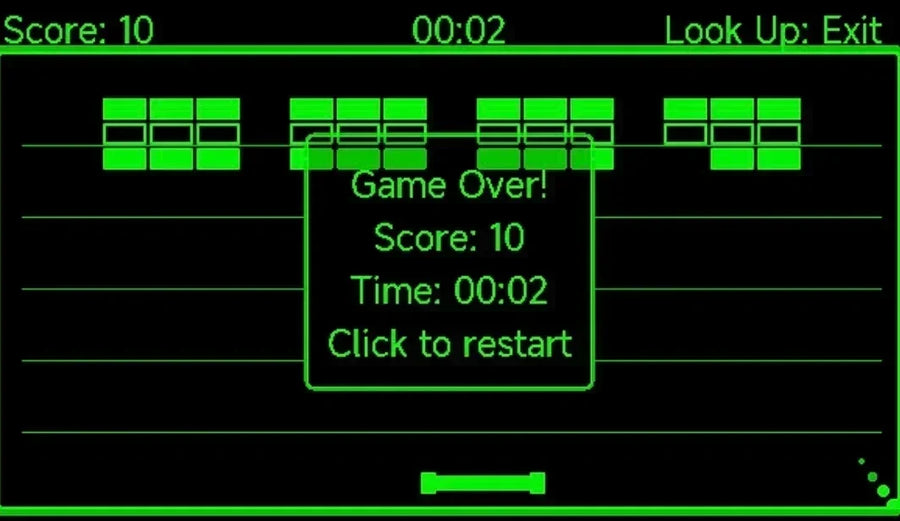
MemoMind One Dashboard: What's on the AI Glasses Display?
When you're wearing smart glasses, you're usually not sitting still and staring at a screen. You're walking, cooking, commuting, working, or talking to someone.
That's why the display shouldn't try to become another phone screen.
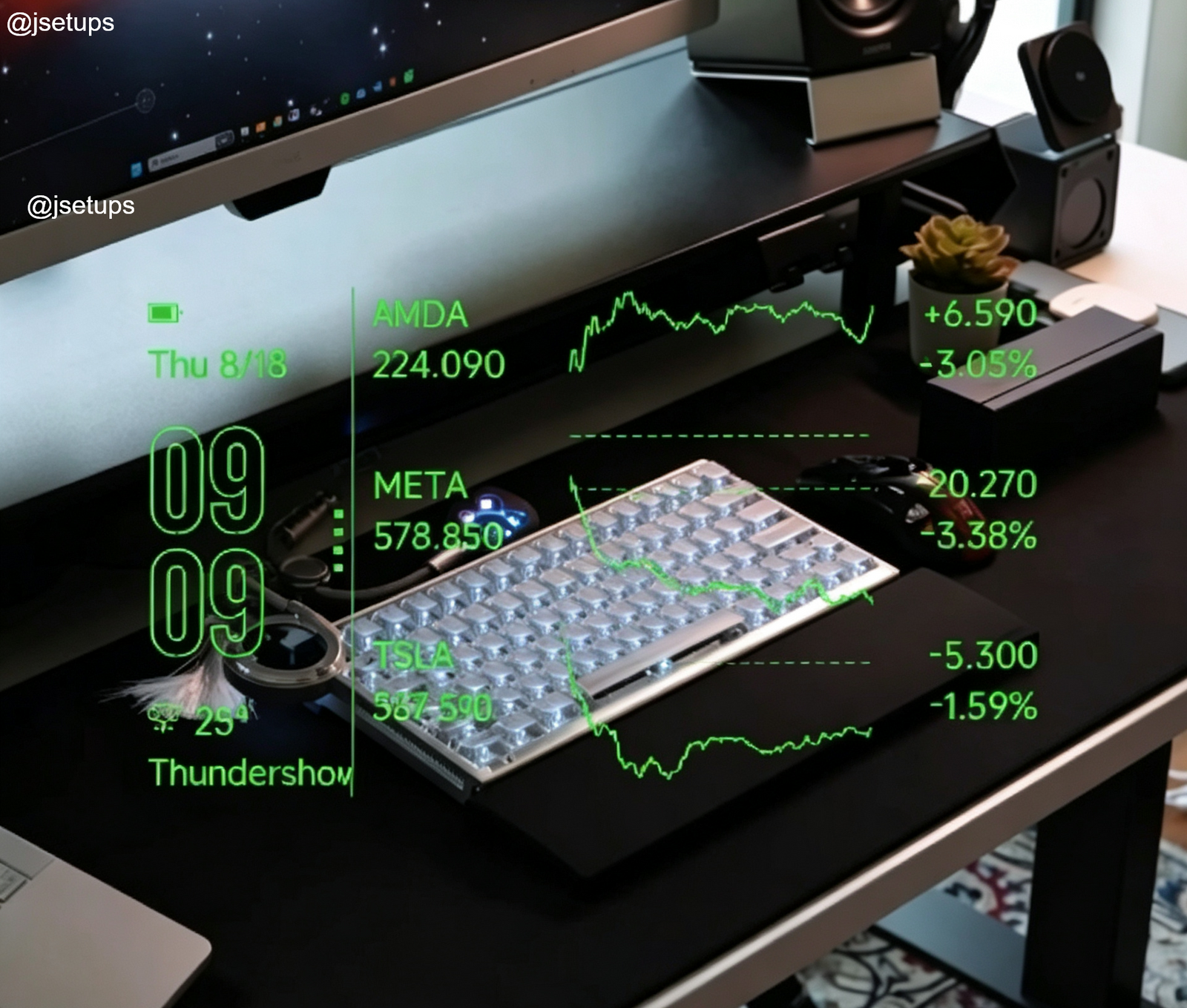
MemoMind One's Dashboard gives you a customizable layer of everyday information you can check at a glance—from time, weather, and battery to notifications, calendar, stocks, news, Idea Notes, lyrics, and to-dos.
You configure it in the MemoMind app, then see your selected information on the glasses themselves.
What's on the MemoMind One Dashboard?
The Dashboard has two main parts:
-
Status Area for everyday essentials such as time, date, weather, and battery
-
Component Area for the widgets you choose to place on your Home screen
You can have up to four active components on Home at a time. Other components can be moved into Hidden on Home and swapped back in whenever your priorities change.
So the Dashboard isn't a screen where everything appears at once. It's a curated set of information you choose to keep close.

Status Area: The Basics You Check All Day
Some things are useful often enough that you shouldn't have to search for them.
The Status Area keeps these essentials available on your glasses display: Time, Date, Weather, Battery
You can adjust how they appear in the MemoMind app, including different clock styles and formatting options.
Choose from outlined, bold, or analog clock styles. You can also switch between MM/DD ↔ DD/MM, 24h ↔ 12h, °C ↔ °F to match wherever you are.
These are small settings, but they matter when you're wearing something throughout the day.
Component Area: Pick What Matters
The Component Area is where the Dashboard becomes personal.
You can choose up to four components for your Home screen and arrange them in the order that makes sense to you.
The available components include: Notifications, Calendar, Stocks, News, Idea Notes, Lyrics, To-Do.
| Component | What you see | Why it's useful |
|---|---|---|
| Notifications | Sender + timestamp + alert | Decide whether to check your phone |
| Calendar | Upcoming event + date | Know what's next at a glance |
| Stocks | Price + change + trend | Check your watchlist quickly |
| News | Short headline cards | Stay updated without scrolling |
| Idea Notes | Quick notes | Capture ideas before they disappear |
| Lyrics | Lyrics while listening | Keep the words in sight |
| To-Do | Your tasks | Keep important tasks visible |
You don't have to keep the same four all day, either.
If something isn't useful right now, move it to Hidden on Home. When your routine changes, you can bring it back through the MemoMind app.
Stay Informed: Build Your Own Dashboard
Not everyone needs the same information throughout the day.
If you want your AI glasses to help you stay informed, you can build your Home screen around three simple sources of everyday information:
Weather + News + Stocks
-
Weather gives you immediate context for the day.
-
News gives you a quick view of what's happening.
-
Stocks lets you keep an eye on the things you're following.
Weather stays available in the Status Area, while News and Stocks can take up two of your four Home screen component slots.
Together, they create a lightweight information layer that you can check without constantly opening your phone.
Also, you can change them when the way you use your glasses changes.
For Work
Calendar + Notifications + To-Do + Idea Notes: Keep meetings, incoming messages, tasks, and ideas within quick reach.
For more ways to use MemoMind One during presentations and meetings, explore our guides to AI glasses for presentations and AI glasses for meetings.
For Everyday Use
Weather + Notifications + Calendar + To-Do: A simple setup for the information you're most likely to check throughout the day.
For Capturing Ideas
Idea Notes + Calendar + To-Do + Notifications: Keep ideas, reminders, and the things you need to act on close at hand.
Your Monday morning Dashboard might look different from your weekend one.
This is probably the most interesting part of a customizable MemoMind One Dashboard: there isn't really a universal "best" setup but a "yours" setup.
Related Blogs
More MemoMind stories from the same category.