How to Use Maps on MemoMind One: Hands-Free Navigation
Imagine walking through a vibrant street market in Tokyo, or cycling through a new city for the first time. The usual compromise: you either stop at every intersection to check your phone, missing the world around you, or you get lost trying to remember the next turn.
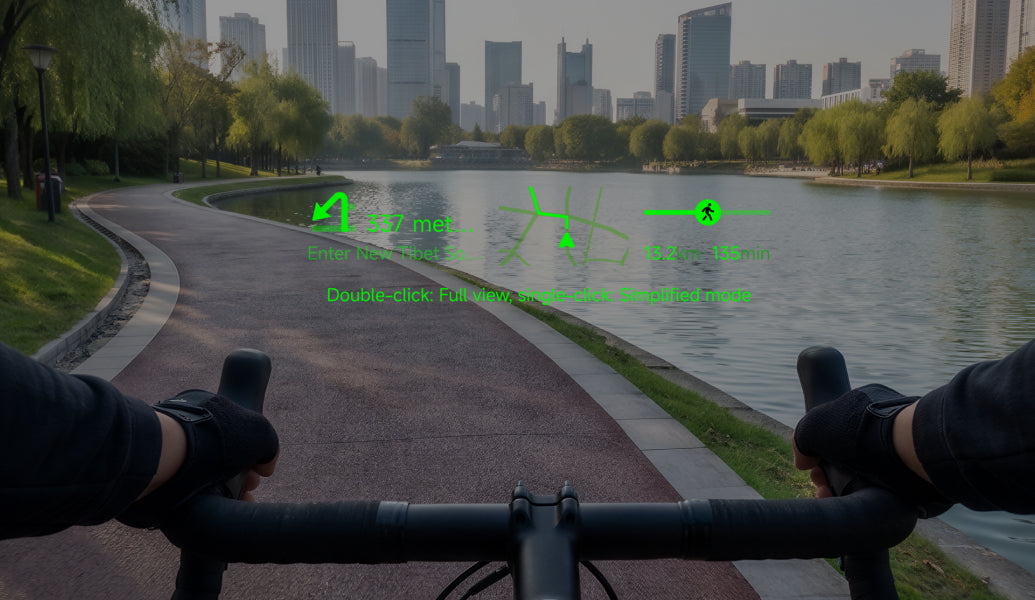
With MemoMind One Maps, the compromise is over. Set your destination on your phone, and turn-by-turn directions appear right in your line of sight — on the glasses display. No more looking down, no more stopping, no more fumbling for your phone while walking or riding.
This guide walks you through how to set up navigation, add frequent locations, and switch between walking and cycling modes.
How to Set Up & Start Navigation
Navigation on MemoMind One works in two stages: you select and confirm your destination on the phone, and the glasses display the route. Here's the full flow:
- Step 1: Open Maps in the MemoMind app. Tap the Maps tab in the bottom navigation. The app shows a map view with your current location and a search bar at the top.
- Step 2: Search and confirm your destination. Type an address, place name, or business in the search bar. The app suggests matching locations — tap the one you want. Confirm the destination on the preview screen. (You can also tap a saved frequent location — see below.)
- Step 3: Choose your route mode and start. Before starting, select Walking or Cycling as your route mode (you can set a default in Settings — see below). Tap Start. The route is sent to your glasses, and turn-by-turn directions appear on the display.
- Step 4: Follow directions on your glasses. The glasses show your next turn, distance to the turn, and current direction — all in your line of sight. You can keep walking or cycling without looking down. When you arrive, the glasses show "Arrived" and the navigation ends.
Note: You select the destination on the phone — the glasses handle the display and turn-by-turn guidance. This keeps the search and selection experience fast and accurate, while the navigation stays hands-free.

How to Add Frequent Locations
Many trips involve returning to the same places — your hotel, the office, a conference venue, or a favorite local café. Save them once, and navigate there with one tap:
Step 1: Open Frequent Locations. In the Maps tab, tap the Frequent Locations section (or the star icon). This shows your saved places.
Step 2: Add a new location. Tap Add Location. You can:
-
Search for a place by name or address
-
Select a location from your recent searches
-
Drop a pin on the map
Give it a recognizable name — "Hotel," "Office," "Mom's house" — so you can find it fast.
Step 3: Navigate with one tap. From then on, your frequent locations appear at the top of the Maps screen. Tap any one to start navigation — no need to type the address again. Perfect for when you're heading back to your hotel after a day of exploring, or commuting to the office.

How to Set Your Default Route Mode
MemoMind One supports two navigation modes, and you can set a default so you don't have to choose every time:
Step 1: Open Maps Settings. In the Maps tab, tap the settings icon (gear). Find Default Route Mode.
Step 2: Choose Walking or Cycling.
-
Walking Mode — Perfect for dense city centers, transit hubs, and pedestrian-only zones. Routes prioritize sidewalks, crosswalks, and pedestrian paths.
-
Cycling Mode — Designed for eco-friendly travelers exploring cities on two wheels. Routes prioritize bike lanes, bike-friendly streets, and keep your hands securely on the handlebars.
Step 3: Override per trip if needed. Your default mode is pre-selected every time you start navigation, but you can switch to the other mode before tapping Start — for example, if you usually walk but rented a bike for the day.
To deliver the safest and most reliable heads-up experience, navigation is tailored for micro-mobility and pedestrian exploration. Driving mode is not currently supported.
How It Works in Real Life
-
Exploring a new city. Walking through unfamiliar streets — set your destination on the phone, follow turn-by-turn on the glasses, and actually look at the architecture instead of your phone screen.
-
Commuting by bike. Cycling to work — set Cycling as your default, pick the office from frequent locations, and keep both hands on the handlebars while the glasses guide you.
-
Traveling abroad. In a city where you don't speak the language — navigate to a restaurant or museum with Maps, and switch to Translator when you arrive to order or ask questions.
-
Conference week. Staying at a hotel and shuttling to a venue — save both as frequent locations, and navigate between them with one tap all week.
-
Running errands. Walking to the grocery store, pharmacy, and post office — set each destination as you go, and the glasses keep you on route without interrupting your pace.
Related Blogs
More MemoMind stories from the same category.